 KantoPay
Step 1 of 7
Create your account
This guide sets up a Minecraft server store from nothing: a web page where your players buy ranks and kits, pay in pesos by QR Ph from GCash, Maya or any bank or e-wallet app, and get what they paid for in game without anyone on your staff lifting a finger.
Every picture below is a real KantoPay screen. We made a store called Isla SMP for this guide on October 16, 2026, with two sample products, and deleted it afterwards. Keys are masked and the test payment code is blurred.
What you need. A server that can load plugins: Paper, Spigot, Purpur or Folia, on Minecraft 1.8 or newer, with access to its plugins folder and its console. A vanilla server can’t load plugins, so the dashboard suggests switching your host to Paper first. Builds for Fabric, NeoForge and Forge deliver purchases too, without the in-game chest menu; the Velocity build delivers ranks network-wide.1 You also need an email address, and you must be 18 or older. To cash out, you also need a GCash, Maya or bank account in the Philippines.12
What your players need. Any bank or e-wallet app that pays QR Ph, like GCash or Maya. No card, and no account with us.4
Sign up. Press Start selling at the top of this page (on the home page it reads Start free), then Create account. Enter your email, choose a six-digit PIN and type it twice. Before the account is made, you read and agree to the Creator Agreement and the Privacy Policy and confirm you’re 18 or older. A one-time code arrives by email; type it in and the dashboard opens. Your legal name and date of birth come later, before your first cash-out or ID check.1
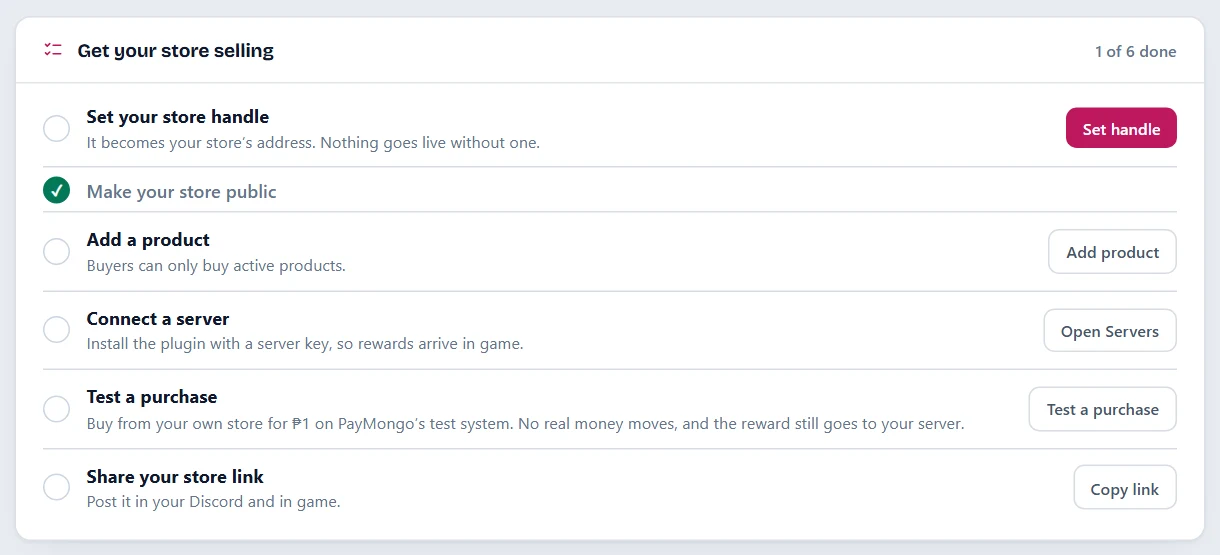
The rest of this guide follows that checklist, in order, and adds one optional step for Discord.
| Step | Where | Done when |
|---|---|---|
| 1. Create your account | kantopay.com, Start free | The dashboard opens |
| 2. Name your store | Web Builder, Store Settings | Your handle is saved and the store reads Public |
| 3. Add products | Products, Add product | A product is active, with its commands |
| 4. Connect your server | Servers | Your server shows Connected |
| 5. Test it | Servers, Test; Overview, Test a purchase | The commands ran in game and you have seen checkout |
| 6. Share your link | Overview, Copy link | Your players have it |
| 7. Discord (optional) | Integrations | Kanto is in your Discord server |
Tip. The checklist ticks each step by itself as you finish it, and the card goes away once all six are done. Until then, it is the quickest way back to whatever is left.1
Step 2 of 7
Name your store and pick its handle
Open Store Settings. Press Set handle on the checklist. It opens Web Builder at Store Settings, on a card called Store address.
Type your store name. This is what players call your server. It shows on your store, in receipts and in gift card emails. As you type, the dashboard suggests a handle from it: “Isla SMP” became isla-smp.1
Check the handle. Letters, numbers and dashes. It becomes your store’s address, your-handle.kantopay.com. Under Where it lives you can keep that address or choose Custom and use a domain of your own. Press Save Settings.1
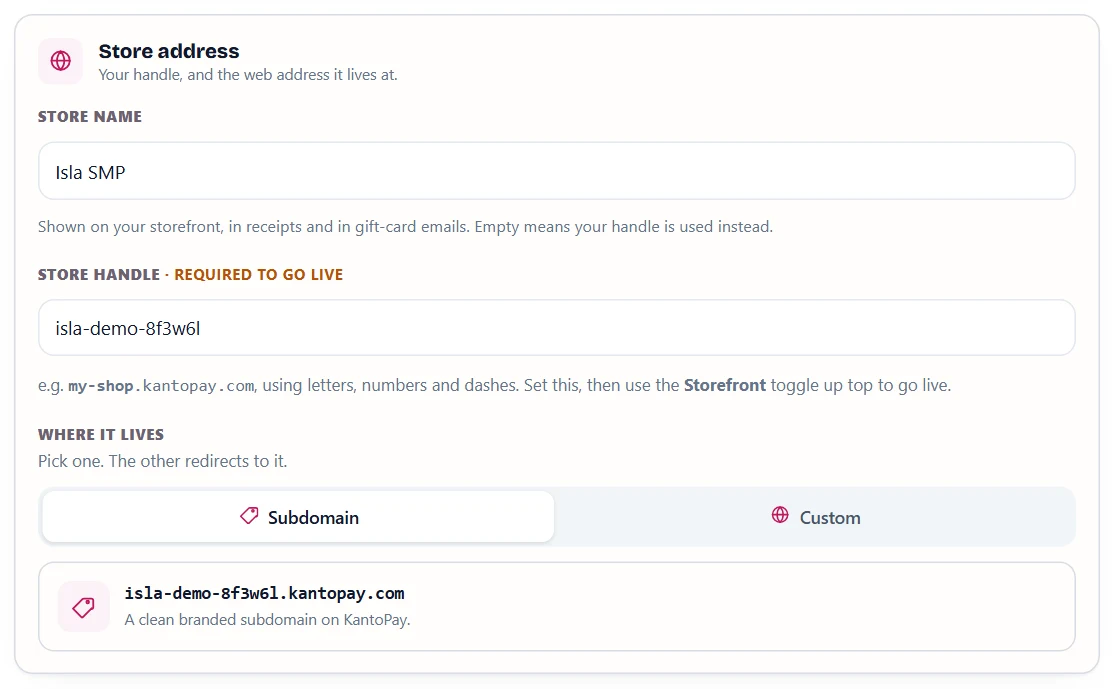
Your store opens when it is saved. A new store is open to buyers from its first save. The Storefront switch at the top of Web Builder is the only thing that opens or closes it: designing pages and saving drafts never does.1

Tip. Leave the design for later. Your store works with the default layout from the first save; the drag-and-drop builder only changes how it looks.1
Step 3 of 7
Add a product, with the commands that deliver it
Open Products and press Add product. The form has four parts: Basic Info, Pricing, Game Setup and Preview.
Basic info. A name, a sentence on what the player gets, and a category that groups it in your store: Rank, Item, Kit, Currency, Subscription, Service, or one you type yourself. A photo is optional.1
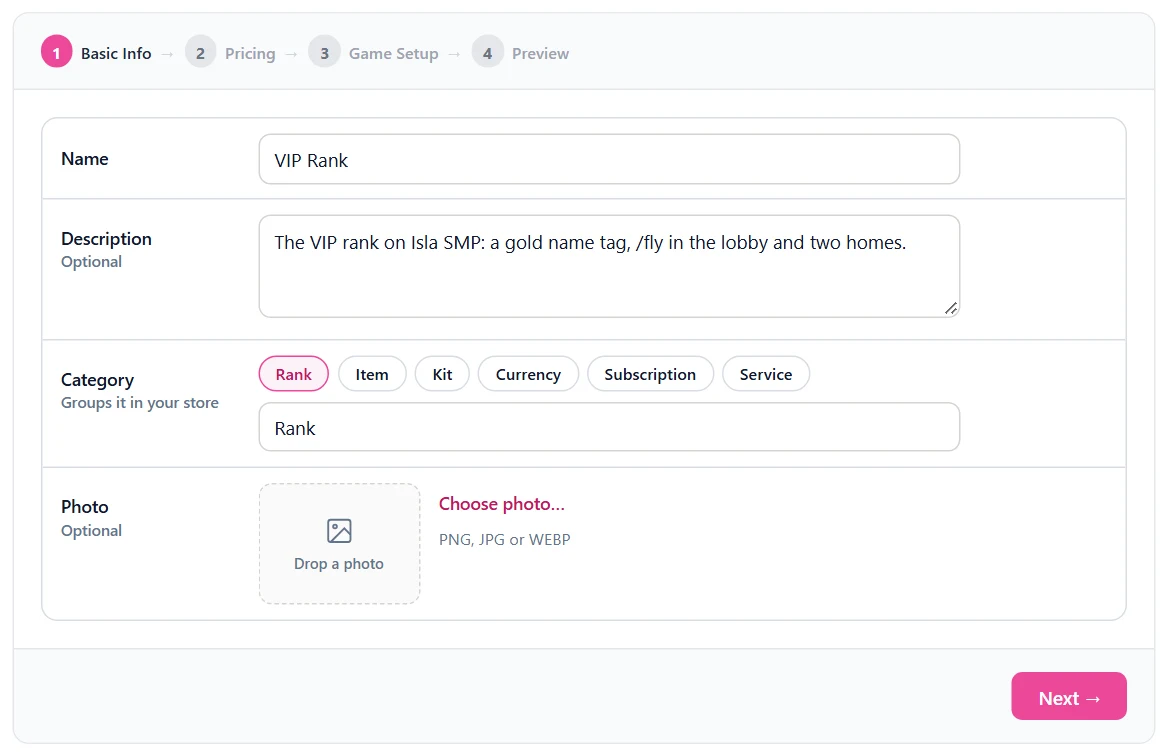
Pricing. The price in pesos. We set VIP Rank at ₱150 and a Starter Kit at ₱50. Variants are optional: durations or package sizes, each with its own price.1
Game setup: the commands. Choose Minecraft: Java Edition, then add the commands your server should run when someone pays: the same commands you would type in the server console, with {player} where the buyer’s name goes. For VIP Rank we used two:
lp user {player} parent set vip puts the player in the vip group, if your server uses LuckPerms, and replaces any group they had; use parent add to keep the others.9say {player} just became VIP. Thank you! thanks them in chat.
The Starter Kit got three give commands instead, such as give {player} minecraft:bread 64.10
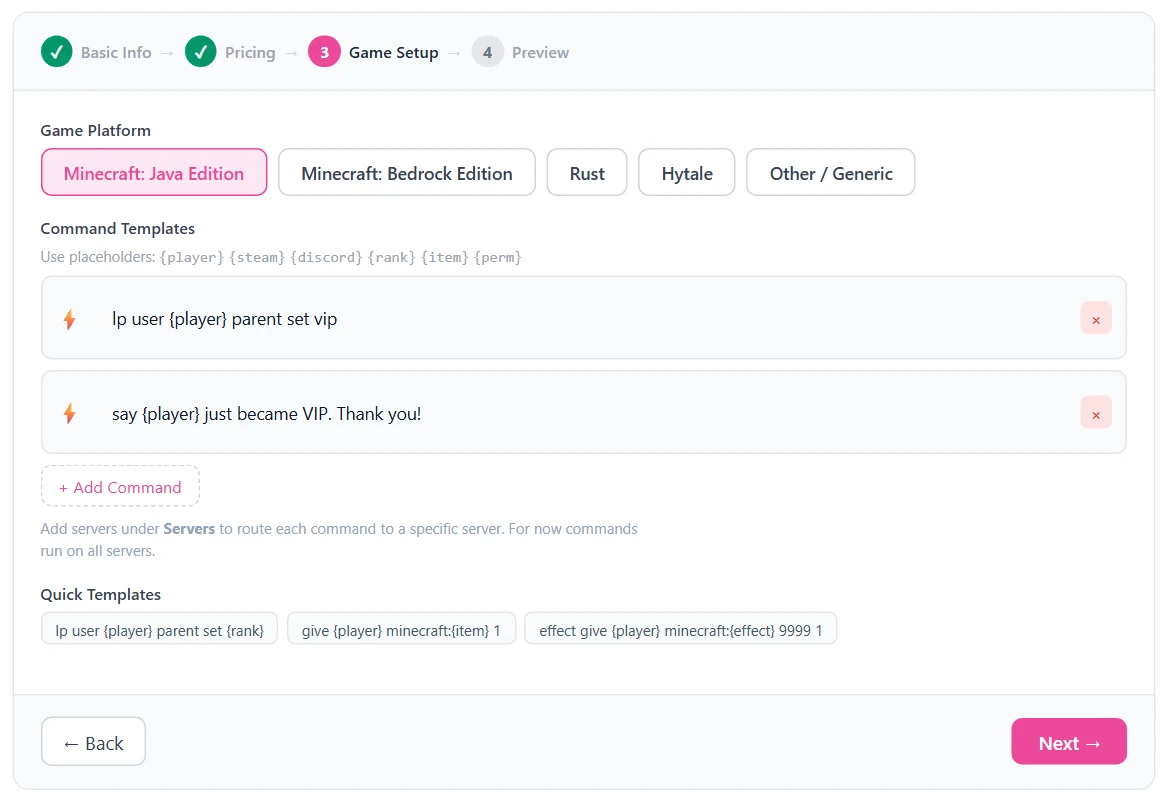
Preview, then create. The last part shows the product as players will see it. Press Create Product and it is on sale straight away.
Tip. Type commands without the slash, the way the console takes them. If one slips in, KantoPay takes it off before the command reaches your server. Anything handed to a character, like give, waits until the player joins; ranks, permissions and economy commands, like lp, run straight away. The product editor has a switch for this, Wait until the player is online.1
Step 4 of 7
Connect your server
This is the step that makes delivery automatic. Everything happens on the Servers page.
Download the plugin. In the Plugin panel, choose what your server runs. Pick Paper for Paper, Spigot, Purpur, Folia or Pufferfish, then press Download to get kantopay.jar. The plugin is free.1
Install it. Put the jar in your server’s plugins folder and restart the server. The plugin writes its config file on first start.1
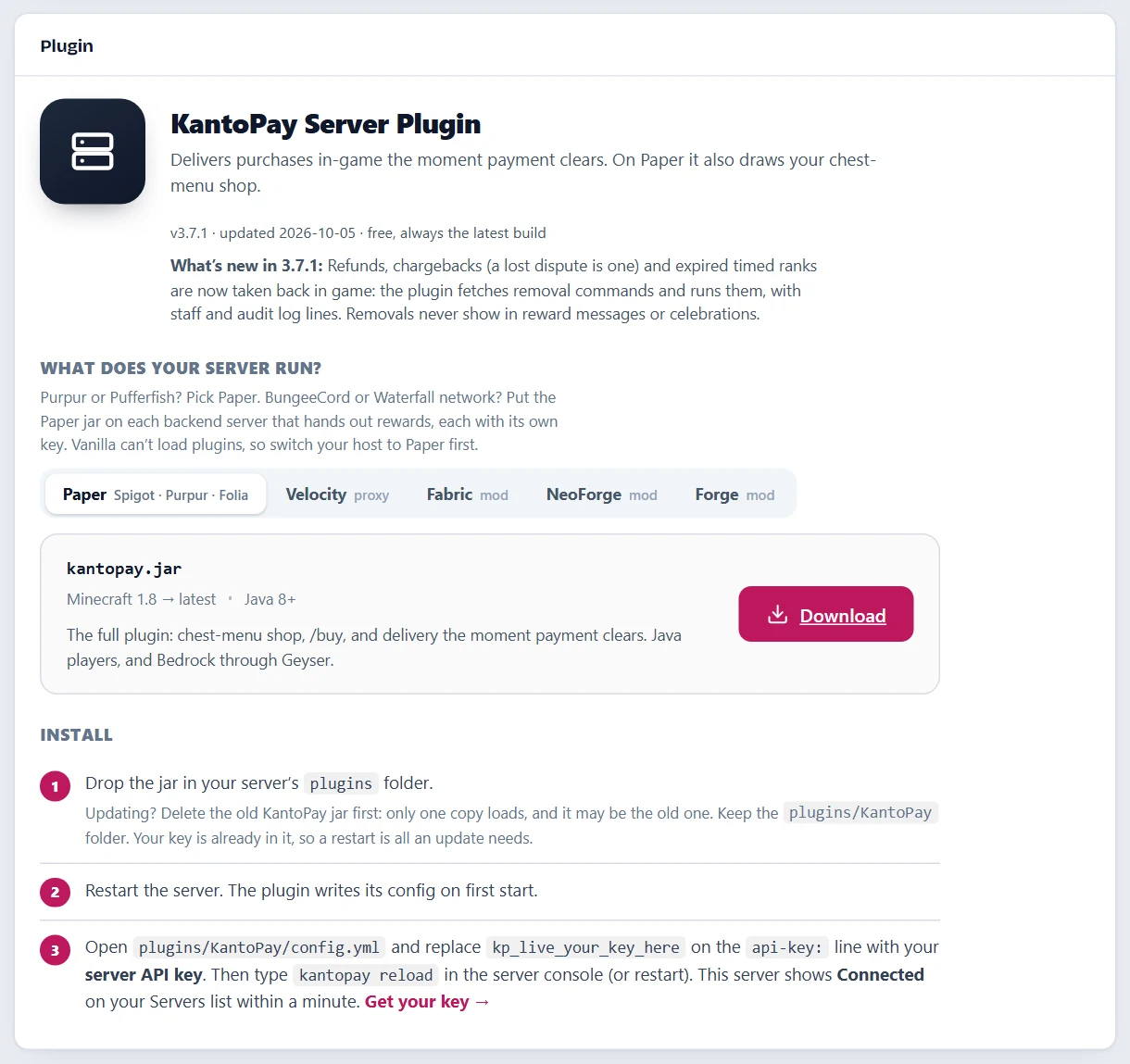
Add the server and copy its key. Under New server, name it the way your players know it (we used Survival), pick Minecraft Java and press Add server. The dashboard asks for your PIN. Then it shows the server’s key, once: copy it now, because it won’t be shown again.1
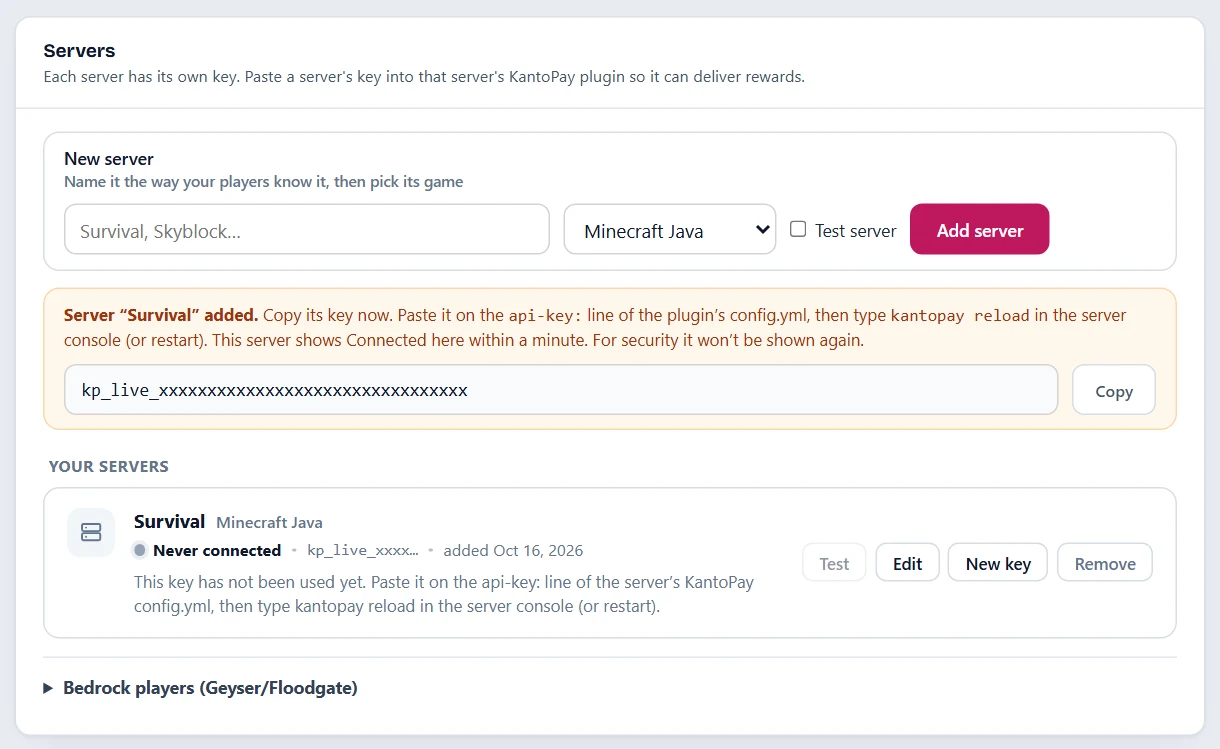
Paste the key. Open plugins/KantoPay/config.yml, replace kp_live_your_key_here on the api-key: line with your key, save, and type kantopay reload in the server console (or restart). Within a minute the server shows Connected.1

Tip. Every server gets its own key. On a BungeeCord or Waterfall network, put the Paper jar on each backend server that hands out rewards, each with its own key. Lost a key? New key on the server’s card makes a fresh one and switches the old one off.1
Step 5 of 7
Test it without real money
Two tests, and neither costs anything. The first checks your commands; the second shows you checkout the way a player sees it, then delivers the reward.
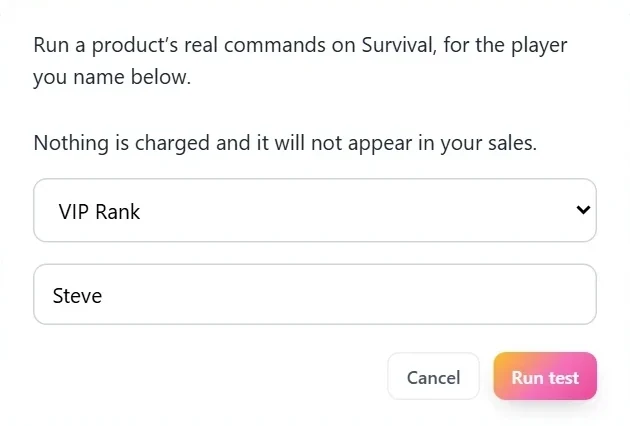
Run a product on your server. On your server’s card, press Test. Pick a product and type your own in-game name, then Run test. The plugin runs that product’s real commands for you. Nothing is charged, and it doesn’t appear in your sales. The card then says the commands ran, or which one failed and why.1
Walk through checkout. On Overview, press Test a purchase. Your store opens in a private preview with a yellow bar across the top. Buy anything: checkout costs ₱1 on PayMongo’s test system, and no real money moves. The payment page says “Test order — no real money” and has a button that completes the test payment.1, 2
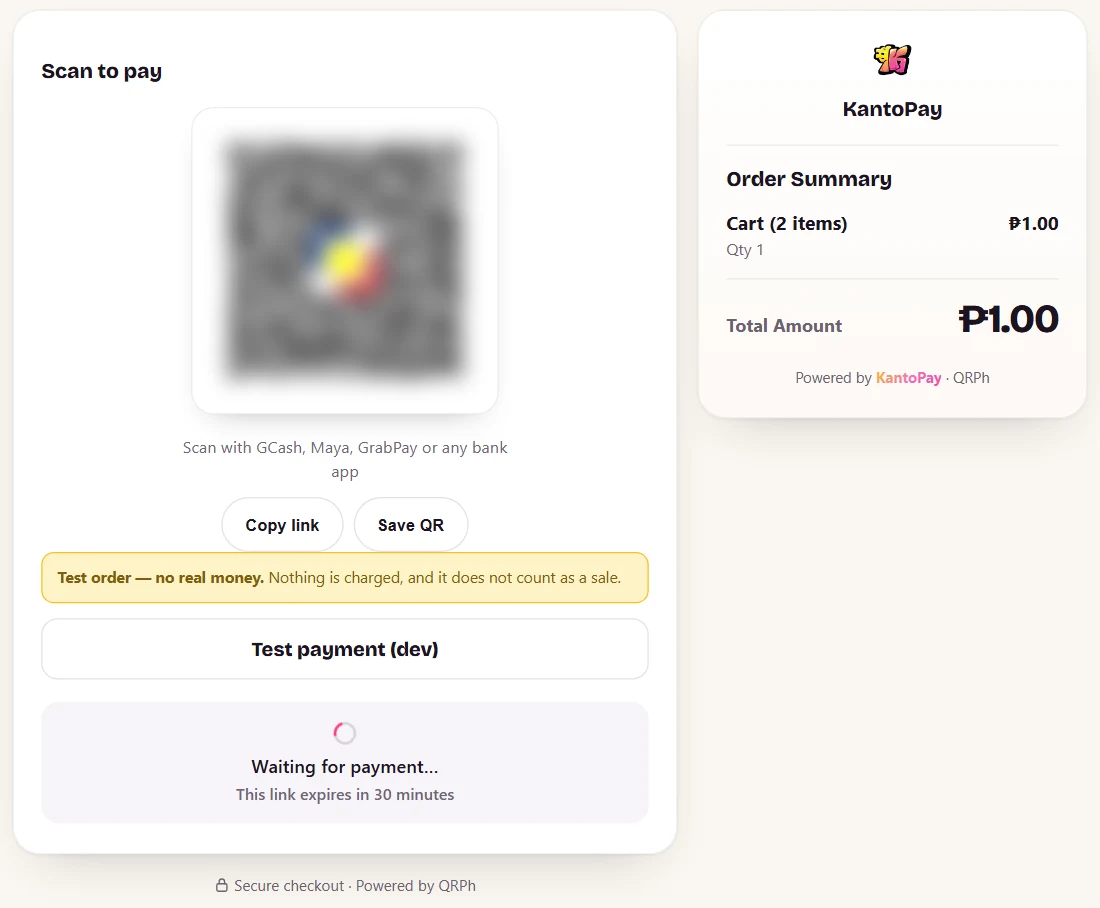
Where the reward goes. On the payment page, press Test payment to finish the test. The order’s commands then go to your server, the same way a real sale’s do, so use your own in-game name and be online for anything that waits for the player.2
Tip. Test orders don’t touch your balance or your sales, the buyer gets no email, nothing is posted to Discord, and each one is deleted 30 minutes after it is made.3
Step 6 of 7
Share your store link
Copy it. On Overview, Copy link puts your store’s address on your clipboard: your-handle.kantopay.com, or your own domain if you set one.1
Post it where your players are. In your Discord, in your server’s welcome message, on a sign at spawn. In game, the Paper plugin also gives players a chest-menu shop and /buy, so they can find your products without leaving the server.1 Peso in, perks out.
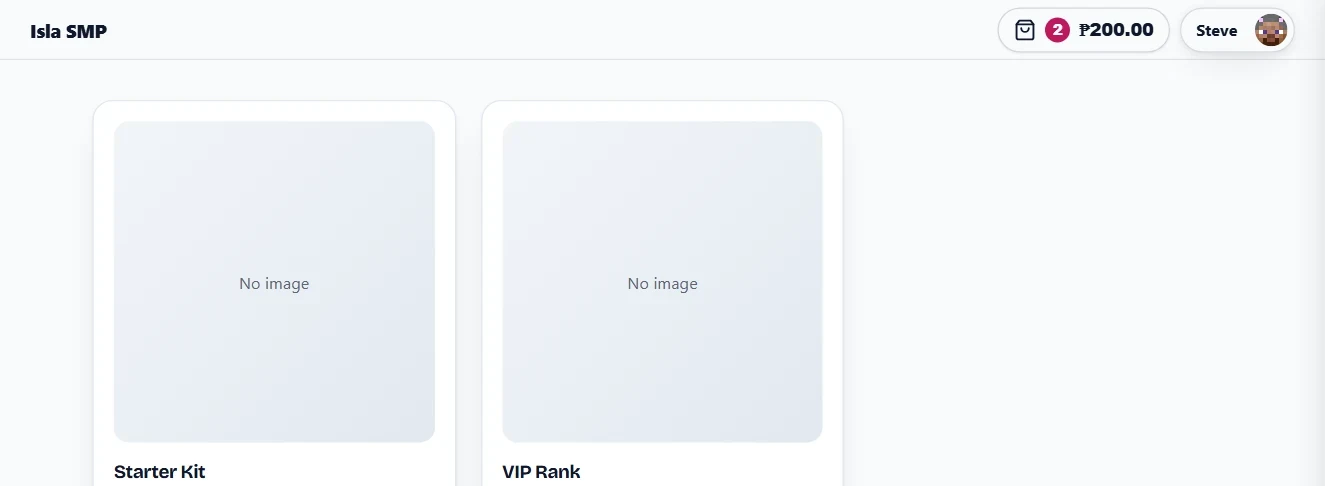
Tip. The store asks each player for their in-game name before anything goes in the cart, and remembers it. When your store also serves Bedrock players through Geyser, it lets each player choose Java or Bedrock, and asks Bedrock players for their Xbox gamertag.5
Step 7 of 7, if you like
Add Kanto to your Discord
Kanto is our shop bot. It is optional: your store works without it.
Connect it. Open Integrations and press Connect a Discord server, then add Kanto to a server you manage. It asks for permission to give and take back the roles you sell, post in channels, post cards with pictures and buttons, answer slash commands, and ping @everyone only if you turn that on.1
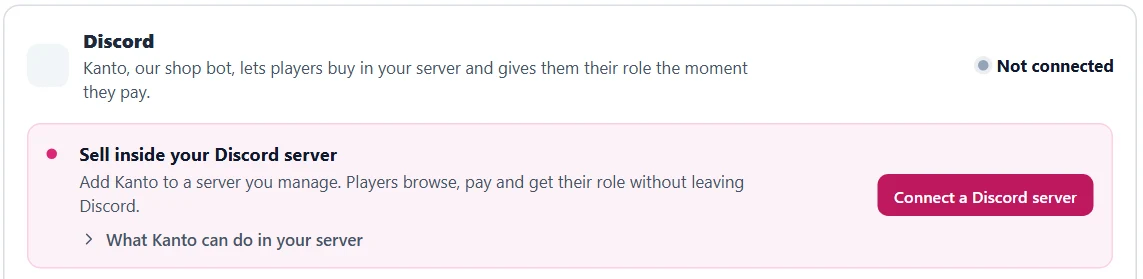
Put your shop in a channel. Type /kanto panel in the channel where players should buy. Players browse, pay and get their role without leaving Discord. Only people who can manage the Discord server can post the panel with /kanto panel.1
Post your sales. Kanto can post a message each time someone pays. Without the bot, a Discord webhook does the same.1
Tip. /kanto giftcard runs a gift card giveaway in your Discord. How it works is in Gift cards, made for your server.
How your players pay
Here is what a player does, from your link to the reward in game.
- Open your store and pick something. The first time, the store asks for their in-game name.5
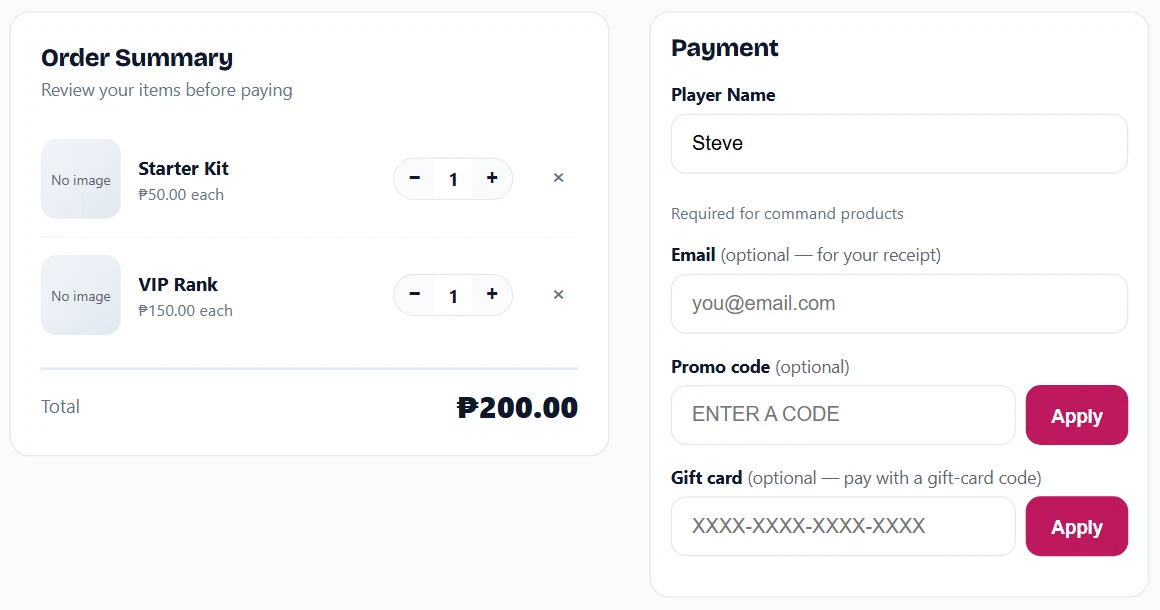
- Check out. Their player name is needed for anything with commands. An email for a receipt, a promo code and a gift card are all optional.5
- Scan and approve. A QR Ph code appears for the exact peso total. They scan it with GCash, Maya, GrabPay or any bank app and approve the payment in that app. The code works for 30 minutes.6
- Play. When the payment clears, the plugin runs your commands on your server.
How fast it arrives. Over the 30 days to October 16, 2026, half of the 305 orders we measured reached the player within 19 seconds of payment.7
Who the player buys from. KantoPay is the seller and merchant of record: the player’s purchase is with us, and we collect the payment, handle the tax, and are responsible for delivery and support.8 We buy each item from you at a trade price: your price less our 5% margin and less 3% of what the player paid, which allows for the percentage tax we pay the BIR as the seller. From what we owe you we also deduct the QR Ph payment fee, 1.5%.4, 12
| Player pays | Our margin, 5% | QR Ph, 1.5% | Tax allowance, 3% | You keep |
|---|---|---|---|---|
| Starter Kit, ₱50 | ₱2.50 | ₱0.75 | ₱1.50 | ₱45.25 |
| VIP Rank, ₱150 | ₱7.50 | ₱2.25 | ₱4.50 | ₱135.75 |
Cashing out. A sale is ordinarily held for about 14 days. Then you can cash out to GCash, Maya or a Philippine bank account, in pesos, for ₱10.4, 12 This is how our own terms work, not tax or legal advice: what you owe on your earnings depends on your own situation, so ask an accountant if you are unsure.
If something goes wrong
The server says Never connected. The key hasn’t been used yet. Check it is on the api-key: line of plugins/KantoPay/config.yml, then type kantopay reload in the console or restart.1
It says Not responding, or Offline. The dashboard shows Not responding when it hasn’t heard from the plugin for three minutes, and Offline after a day. Rewards wait until it reconnects, so check that the server is running and the plugin loaded.1
You lost the key. It is shown only once, and can’t be shown again. Press New key on the server’s card and paste the new one.1
A command didn’t run. Run it with the Test button on the server’s card: the card tells you the reason the plugin gave. Then try the same command in your console, with a real player name in place of {player}.1
The player wasn’t online. Items and kits wait for the player to join, and a test says the server is holding the reward until they do. Ranks given with lp arrive even while they’re offline.1
Players see “not found”. The store has no handle yet, or the Storefront switch is off.1
An update didn’t take. There may be two KantoPay jars in plugins, and only one of them loads, maybe the old one. (With two copies of a Fabric, NeoForge or Forge build, the server won’t start at all.) Delete the old jar and keep its config folder (plugins/KantoPay, or config/kantopay on a mod server): your key is in it.1
Bedrock players get nothing. On Servers, open Bedrock players. Auto reads the prefix from your server; if you set one by hand, it must match username-prefix in your Floodgate config. More in Bedrock players and your store.1
Still stuck? Write to support@kantopay.com with your store handle and what you see.
Sources
Last checked . The dashboard changes; if something here no longer matches what you see, write to support@kantopay.com and we’ll correct it.
- KantoPay dashboard, as it stood on October 16, 2026: every screenshot and label in this guide
- KantoPay, the store’s own preview bar and the dashboard’s Test a purchase step, October 16, 2026
- KantoPay docs, Test orders
- KantoPay, home page (who can pay, fees and cash-out)
- KantoPay, a store’s own pages (the name prompt and checkout), October 16, 2026
- KantoPay, the QR Ph payment page, October 16, 2026
- KantoPay, public stats: median seconds from payment to delivery over the last 30 days, read October 16, 2026
- KantoPay, Terms of Sale
- LuckPerms wiki, Parent commands (
parent set,parent add) - Minecraft Wiki, Commands/give
- KantoPay docs, Docs & API (which keys must stay private)
- KantoPay, Creator Agreement and Creator Rules
Minecraft is a trademark of Mojang. GCash, Maya, GrabPay, PayMongo, LuckPerms and Discord are named only to describe them; KantoPay is not affiliated with them.